# Magic The Gathering Lookup
### MTG Lookup GUI
### Introduction
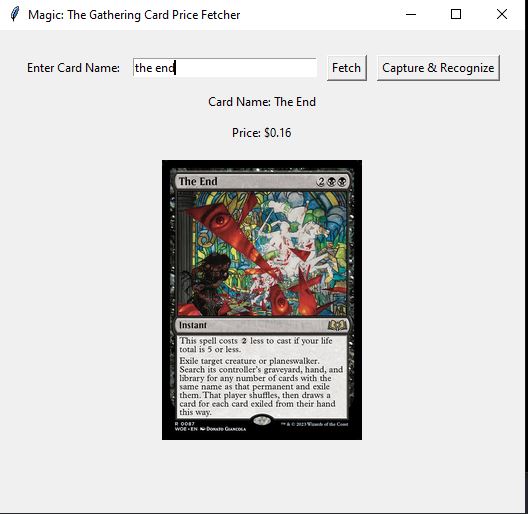
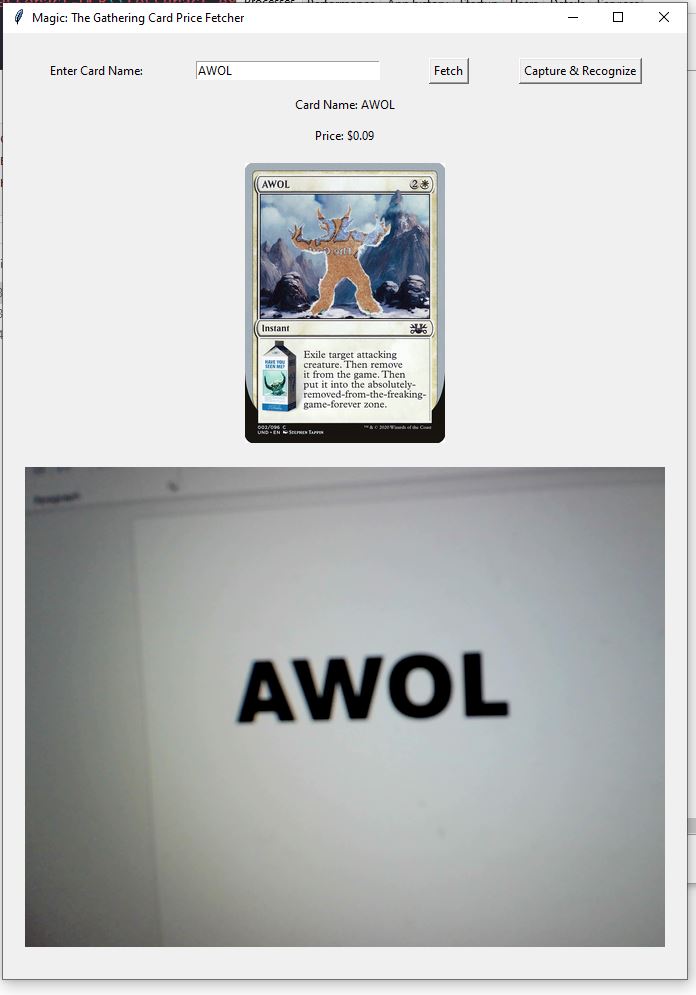
This Python application allows users to look up the value of Magic: The Gathering (MTG) cards. It uses the Scryfall API to fetch card details, including the card's name, price in USD, and an image of the card. Users can either manually enter the card name or use their camera to scan a card. The application employs Optical Character Recognition (OCR) with Tesseract to extract the card name from the captured image and then retrieves the card information accordingly. The GUI is built using Tkinter, and the application also integrates image processing techniques to enhance the captured image for better OCR accuracy.
### The Code
{% code overflow="wrap" %}
```python
import requests
import tkinter as tk
from tkinter import messagebox
from PIL import Image, ImageTk, ImageEnhance
from io import BytesIO
import pytesseract
import cv2
import numpy as np
# Set the path to the Tesseract executable
pytesseract.pytesseract.tesseract_cmd = r'C:\\Program Files (x86)\\Tesseract-OCR\\tesseract.exe'
def get_card_info(card_name):
url = f"https://api.scryfall.com/cards/named?exact={card_name}"
response = requests.get(url)
if response.status_code != 200:
return None
card_data = response.json()
card_name = card_data.get("name")
price = card_data.get("prices").get("usd")
image_url = card_data.get("image_uris").get("normal")
return {
"name": card_name,
"price": price,
"image_url": image_url
}
def fetch_card_info():
card_name = entry.get().strip()
if not card_name:
messagebox.showerror("Error", "Card name is empty. Please enter a valid card name.")
return
card_info = get_card_info(card_name)
if not card_info:
messagebox.showerror("Error", f"Unable to fetch data for {card_name}.")
return
card_name_var.set(f"Card Name: {card_info['name']}")
price_var.set(f"Price: ${card_info['price']}")
response = requests.get(card_info['image_url'])
img_data = BytesIO(response.content)
img = Image.open(img_data)
img = img.resize((200, 280), Image.LANCZOS)
card_image = ImageTk.PhotoImage(img)
image_label.config(image=card_image)
image_label.image = card_image
def update_frame():
ret, frame = cap.read()
if not ret:
messagebox.showerror("Error", "Failed to capture image.")
root.after(10, update_frame)
return
gray = cv2.cvtColor(frame, cv2.COLOR_BGR2GRAY)
# Increase contrast and sharpness
pil_img = Image.fromarray(gray)
enhancer = ImageEnhance.Contrast(pil_img)
pil_img = enhancer.enhance(2)
enhancer = ImageEnhance.Sharpness(pil_img)
pil_img = enhancer.enhance(2)
# Convert back to OpenCV format
enhanced_image = cv2.cvtColor(np.array(pil_img), cv2.COLOR_RGB2BGR)
# Perform OCR on the processed image
card_name = pytesseract.image_to_string(enhanced_image)
card_name = card_name.strip().split("\n")[0] # Get the first line of text
if card_name:
entry.delete(0, tk.END)
entry.insert(0, card_name)
fetch_card_info()
cap.release()
return
# Display the frame in the tkinter window
cv2image = cv2.cvtColor(frame, cv2.COLOR_BGR2RGBA)
img = Image.fromarray(cv2image)
imgtk = ImageTk.PhotoImage(image=img)
display1.imgtk = imgtk
display1.configure(image=imgtk)
display1.after(10, update_frame)
def capture_and_recognize_card():
global cap
cap = cv2.VideoCapture(0)
if not cap.isOpened():
messagebox.showerror("Error", "Unable to access the camera.")
return
update_frame()
root = tk.Tk()
root.title("Magic: The Gathering Card Price Fetcher")
frame = tk.Frame(root)
frame.pack(pady=20, padx=20)
entry_label = tk.Label(frame, text="Enter Card Name:")
entry_label.grid(row=0, column=0, padx=5, pady=5)
entry = tk.Entry(frame, width=30)
entry.grid(row=0, column=1, padx=5, pady=5)
fetch_button = tk.Button(frame, text="Fetch", command=fetch_card_info)
fetch_button.grid(row=0, column=2, padx=5, pady=5)
capture_button = tk.Button(frame, text="Capture & Recognize", command=capture_and_recognize_card)
capture_button.grid(row=0, column=3, padx=5, pady=5)
card_name_var = tk.StringVar()
card_name_label = tk.Label(frame, textvariable=card_name_var)
card_name_label.grid(row=1, column=0, columnspan=4, pady=5)
price_var = tk.StringVar()
price_label = tk.Label(frame, textvariable=price_var)
price_label.grid(row=2, column=0, columnspan=4, pady=5)
image_label = tk.Label(frame)
image_label.grid(row=3, column=0, columnspan=4, pady=10)
# Label to display the camera feed
display1 = tk.Label(frame)
display1.grid(row=4, column=0, columnspan=4, pady=10)
root.mainloop()
```
{% endcode %}
### OCR & Confession
A full disclosure: the OCR portion of the project is currently almost non-functional. Due to limitations with my inexpensive webcam, scanning card names proved to be challenging. I could only get it to recognize text accurately by typing the card names in 72pt font in Word (lol).
---
# Agent Instructions: Querying This Documentation
If you need additional information that is not directly available in this page, you can query the documentation dynamically by asking a question.
Perform an HTTP GET request on the current page URL with the `ask` query parameter:
```
GET https://www.battlecoder.com/battlecoder/projects/magic-the-gathering-lookup.md?ask=
```
The question should be specific, self-contained, and written in natural language.
The response will contain a direct answer to the question and relevant excerpts and sources from the documentation.
Use this mechanism when the answer is not explicitly present in the current page, you need clarification or additional context, or you want to retrieve related documentation sections.